
How to
How to Send a Test Fax
Before faxing an important document to a new number or one you haven’t used lately, send a test fax first, and make sure everything is working properly. In this article, we’ll look at why sending a test fax is essential and provide a step-by-step guide to help you make this process as smooth as possible.
Test Your Online Faxing Functions Using These 3 Steps
eFax is an incredibly simple platform for sending and receiving faxes online. Once you experience the benefits of online faxing, you’re unlikely to go back to old fax machines.
With eFax, sending a fax feels more like sending an email than using a traditional fax machine. This concept can seem a little confusing for those used to a traditional machine, but once you send your first test fax, you’ll be good to go.
Below, we’ll go through the steps of testing a fax online with eFax.
1. Open a New Email Message and Enter Your Fax Number as the Recipient
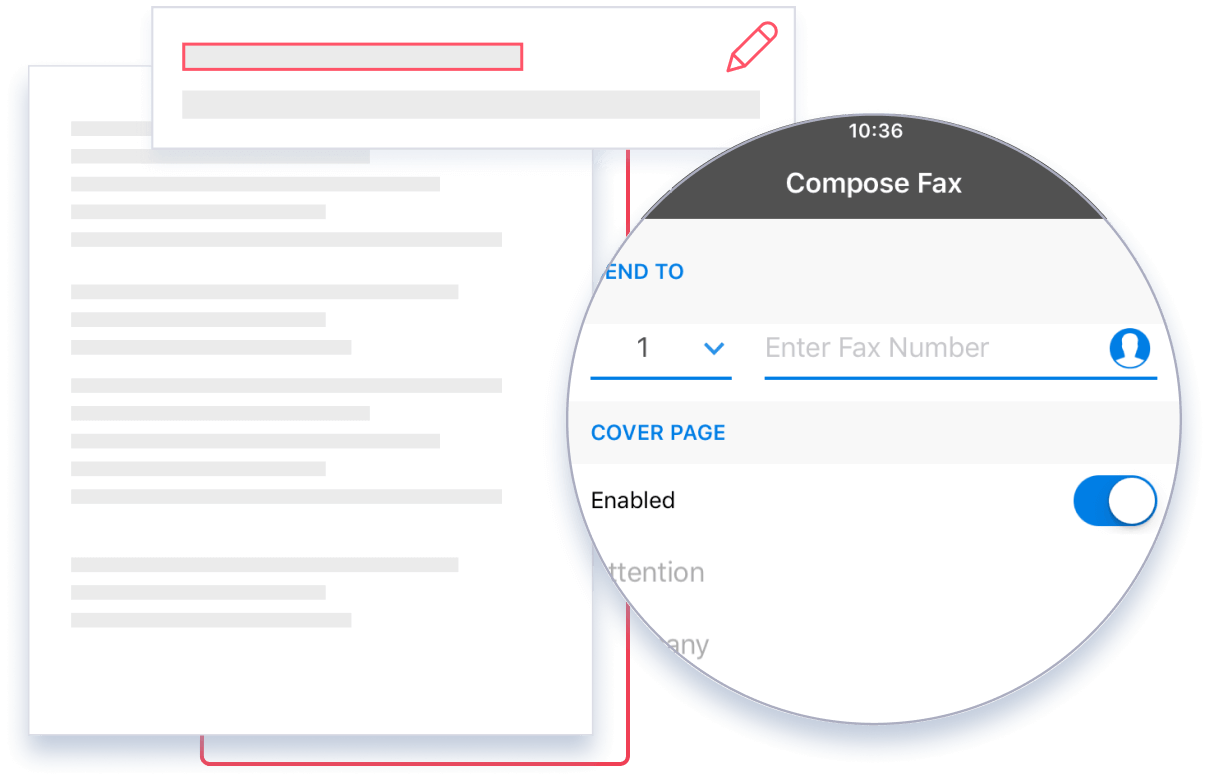
First, navigate to your email client and compose a new email. In the space where you’d typically enter an email address, you’ll enter the number 1 followed by the receiving party’s fax number. Then type “@send.efax.com” at the end. This lets eFax know you want to send a document to the fax number you just typed in.
For example, if your recipient’s fax number is 1-123-456-7890, you would enter [email protected] in your email’s “To” field. For this example, just put in your own eFax number.
2. Attach the Document You Wish To Send, Including the Cover Sheet
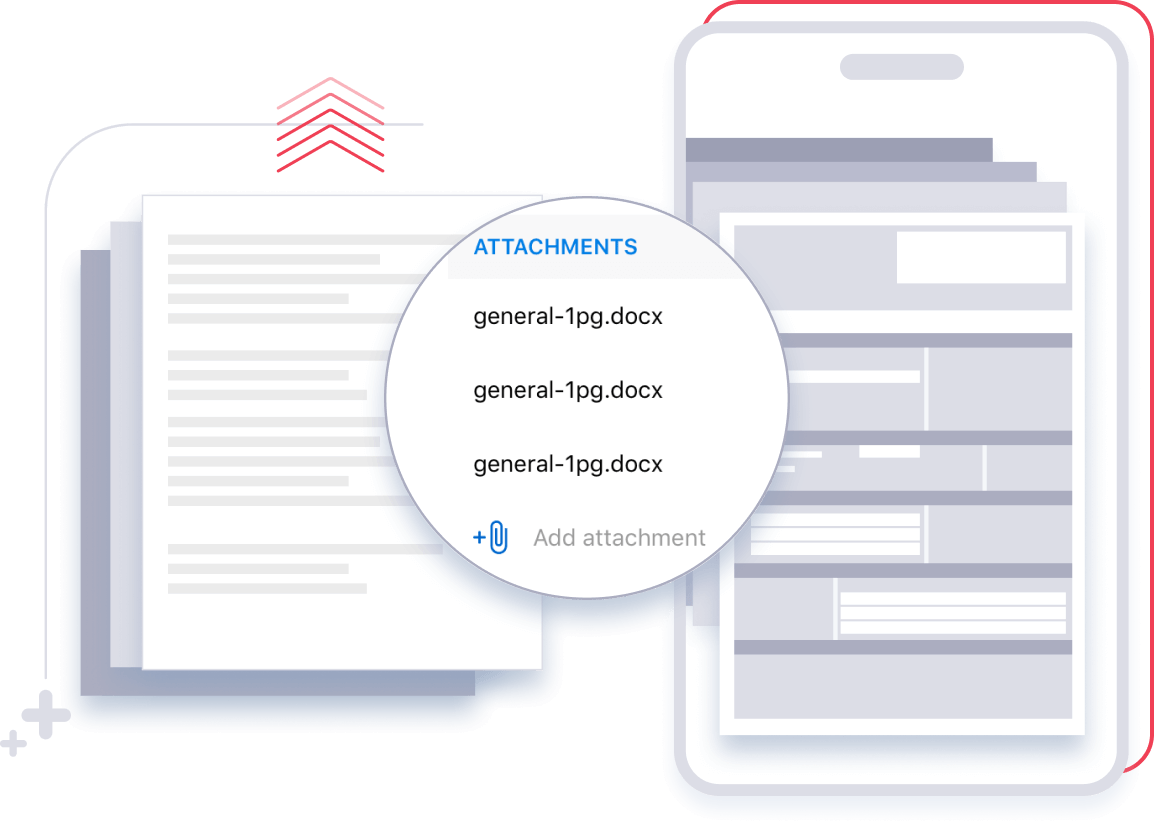
Next, you will attach a document to the email. For this example, you can open a Word or Google document and type “Test.” Then save it as “Test” as a PDF.
Then, create another document and type your name, contact information, and the receiver’s info. Name this one “Cover Letter” and save it as a PDF as well.
Attach both of these documents to the email you composed in Step 1.
3. Send a Test Fax
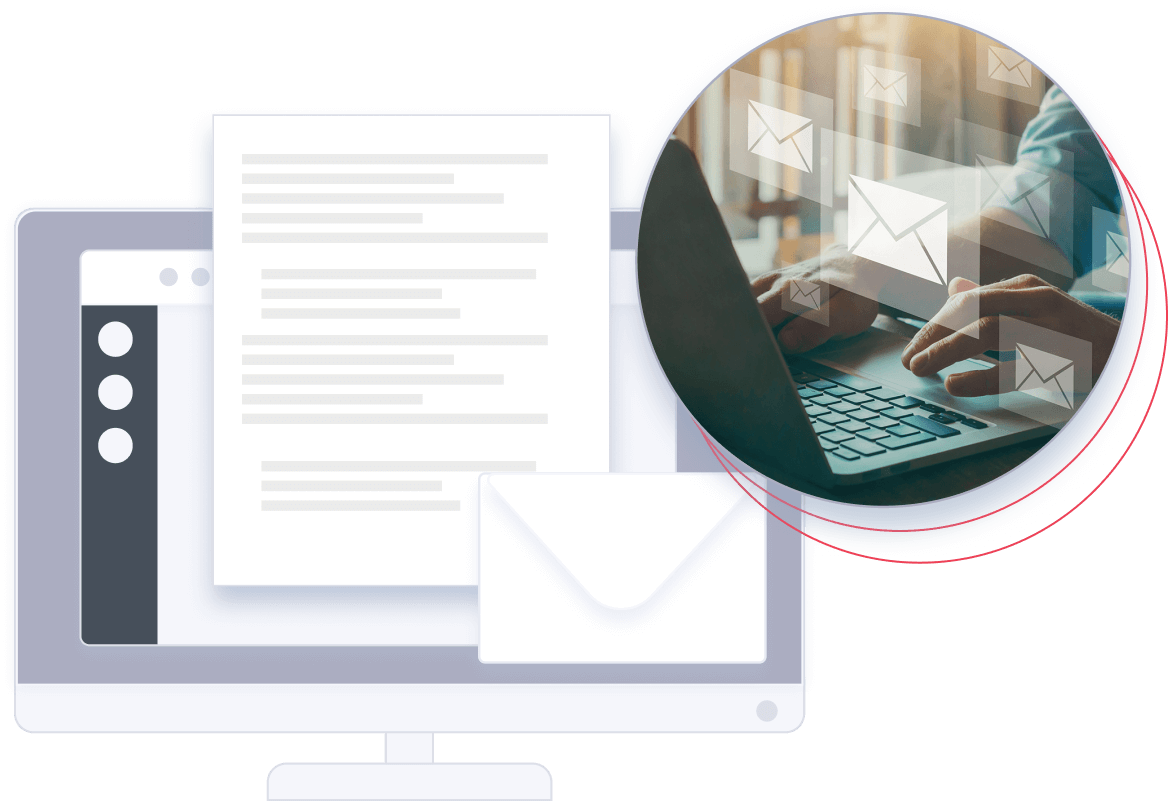
Next, send a test fax by hitting Send. It will be sent over the internet to eFax’s servers which will process and forward your email attachments as fax messages to the number you provided.
4. Check Your Inbox
Within a minute or so, you’ll receive an email confirmation that your fax was successfully sent to the right place. If you’re logged into your eFax account, you’ll be able to see the transmission process. Soon, you’ll receive the fax you sent to yourself.
Review the documents to ensure the correct information was sent and that everything is formatted correctly.
What is a Test Fax Number?
A test fax number is a fax number that you can use to make sure you can send documents electronically.
Why It’s a Good Idea To Send a Test Fax Online First
Sending documents by fax is still one of the most common options for quickly sharing documents. Even in the age of digital communication, faxing remains an integral part of doing business.
You should always test your faxes before sending any critical documents for a number of reasons:

Fax numbers may become inactive or reassigned, so it’s important to keep your contact list updated.
Company employees often change their phone and fax numbers, which requires keeping contact information up-to-date.
Sending a test fax is a simple way to check that your system is set up correctly and functioning properly.
It’s important to regularly check your fax system for errors and ensure that it is functioning properly to avoid any potential issues.

When you send a test fax online, you’re simply using fax protocols over the internet instead of a fax machine. When your test fax comes back, it will show you everything is set up properly or if there’s an issue, at what part in the process the fax failed to send so that you can troubleshoot any issues.
If you’ve recently set up a new fax system, there are likely many people, machines, and fax numbers involved. All of this comes with a higher chance of faxing errors, especially if you frequently send sensitive documents by fax. Things will go much more smoothly with a user-friendly and easy-to-use platform such as eFax to streamline the process.
Different Methods to Test a Fax Number
When it comes to testing a fax number, you have a few different options for testing out your equipment.

1. Perform a Fax Check
One way to test the system is to send a fax to a fax number that you already possess. If you already have an eFax account, you can easily check your contacts and select a fax number to receive your test fax.

2. Send a Test Fax Using eFax
eFax makes it easy to test your fax line. All you have to do is create an account or log in to your existing eFax account. Next, send a fax to any test fax number that is publicly available.

3. Check That You Can Receive a Fax
Another testing option is to see if your equipment is properly set up and if your fax machine is ready to send a fax. Send yourself a fax using your own fax number as the recipient. If you do not receive the test fax, it’s likely that something is not properly installed or set up.
How to Resolve Issues with Unsuccessful Test Faxes
If your test fax hasn’t been sent successfully after 10 minutes, you’ll need to troubleshoot the issue. However, it may not be clear whether the problem is with you or at your recipient’s end. Select Fax Test Report or Run Fax Test from your fax machine’s Setup menu. You can then review the diagnostic printout to discover any errors.
If your fax failed to send:
Check the fax connection by calling your fax number. If you don’t hear a dial tone, check cords are connected to the correct ports.
Try to lower the fax speed in the Advanced Fax Settings menu.
Try turning on Error Correction Mode (ECM) to automatically slow the transmission if there’s a line quality issue.
Send the fax in black and white to simplify the process.
Confirm your fax machine uses the Tone dial type, rather than Pulse.
If you failed to receive a fax:
Ensure Auto Answer is enabled in the Fax or Setup menu.
Ensure no other device is accessing the fax line.
Increase Rings to Answer and select Distinctive Ring in Settings to help the machine distinguish a fax from a phone call.

Securely Send and Test Faxes Online With eFax
Sending a test fax online doesn’t have to be a hassle. eFax is a straightforward platform for sending documents without the need for a fax machine. We make it easy to get an eFax number and start sending secure documents within minutes of setting up your account.
What’s more, with eFax, you don’t have to run to a computer every time you need to fax something. You can send a fax from your smartphone, tablet, or any device with access to the internet. Get started with eFax today and explore a whole new side to faxing.
eFax How to Guide
Learn how to fax effortlessly across different platforms and devices with our step-by-step guides. Whether you’re using Outlook, Gmail, Google Drive, or a mobile device, we’ve got you covered. Explore easy methods for sending and receiving faxes, even without a traditional fax machine. Click on any guide to get started and streamline your faxing today.
Platforms
Devices
Test Fax Frequently Asked Questions
If you’re wondering how to send a test fax, create a blank message, add your test fax number to the header, and hit Send.
Yes, you can send yourself a fax message to perform a test fax online using an online faxing service.
You can test a fax number by performing a fax check, sending a test fax via eFax and sending yourself a fax message.
A test fax will typically be received immediately. However, it can take 10 or more minutes to receive a message to a test fax number.
You don’t need special software to send test faxes online, it’s easy to send a test fax by logging in to your online eFax account.
Send a fax to your eFax number the same way you would send any other fax. You should see it come through to your inbox in a few minutes. This confirms you can send an eFax properly.