How to Fax from Email: A Guide on Email to Fax
Send Fax by Email – What Do You Need?
eFax® makes it incredibly easy to send faxes by email. All you need to get started is:
-

An email address
-
An eFax account
-
A stable internet connection

How Email to Fax Works?
It’s easy to send faxes directly from your email by following the steps below:
- Create a new email by opening up your chosen email client. This could include Gmail, Outlook, iCloud, or Yahoo Mail.
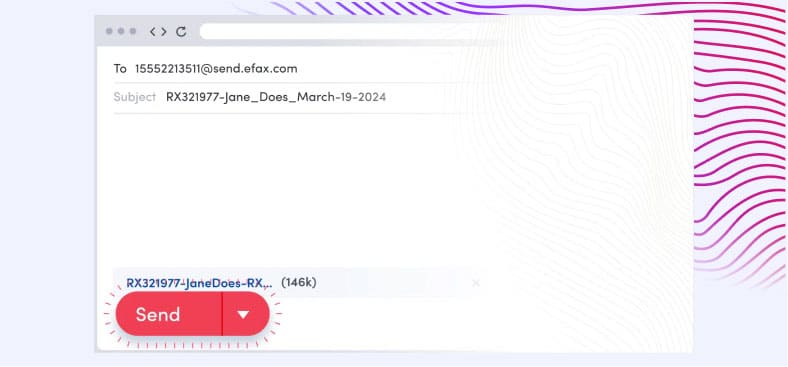
- When using an online faxing service like eFax, you can enter the recipient’s fax number followed by “@send.efax.com” into the “To” or “Recipient” section. For example – [email protected].
- Create your message the same way you would when sending an email. You can also attach any documents you wish to the email, including PDF, DOC, JPG files and other client-supported attachment formats.
- Once you’ve completed your message draft and have attached all relevant documents or images, click the “send” button.
- When you send a fax from your email using a service like eFax, you’ll receive an email confirmation verifying that your fax was successfully sent.
Fax vs. Email: When Should I Use Fax Instead of Email?
You should use fax over email when sharing sensitive data and documents, or if your organization operates in highly regulated industries like healthcare or legal. Reasons to switch from email to fax include:
Security: Emails are prone to being hacked by unauthorized individuals.With eFax®, you get secure faxing, encrypted during transmission and storage.
Regulatory compliance: Organizations may be required to share data and documents by fax, especially if they contain PHI or PPI. Some jurisdictions and regulators may require healthcare providers, government agencies and law firms to share data via fax.
Legally binding: Additionally, some documents may only be admissible as authentic in court if they’ve been shared by fax.
Delivery receipts: Email services don’t typically provide confirmation that a message has been sent or received successfully. Online fax provides an immediate receipt confirmation and lets your recipients retain a hard copy of your message.
How to Fax From Email Using Gmail, Outlook, iCloud, or Yahoo Mail
Faxing from Gmail
eFax® allows you to send a fax from Gmail instantly and with no fuss. If you want to fax with more than one Gmail account, eFax® supports up to five Gmail accounts.
1. Get an online fax account
Sign up for eFax® and get your unique fax number for sending and receiving faxes over the internet.
2. Create a new email message
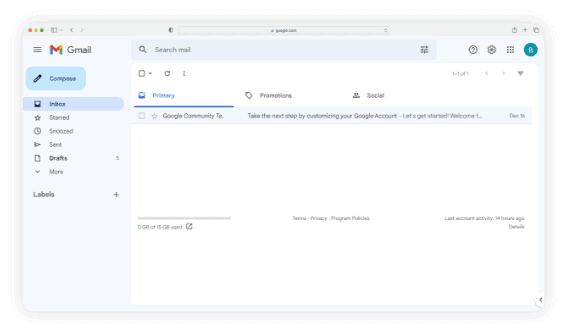
Log in to your Gmail account and click on “Compose” to create a new message.
3. Enter the recipient’s details
Type in the recipient’s fax number, making sure to append “send.efax.com.” For example: [email protected]
4. Add fax documents as email attachments:
Upload a document by clicking the Paperclip icon to import one from your PC or the Drive icon to import documents from Google Docs.
5. Create a cover page
Type a message into the email body to create the cover page for your fax. Alternatively, use any of the cover page templates available on eFax
6. Send your fax
Click the Send button as you would when emailing. If you need to schedule your faxes, click on the right side of the Send button to select the date and time you want your fax to go out.
Faxing from Outlook
Sending a fax from Outlook with eFax is as simple as adding an attachment. Here’s how to get it done:
1. Get an online fax account
Sign up for eFax and get your unique fax number for sending and receiving faxes over the internet.
2. Create a new email message
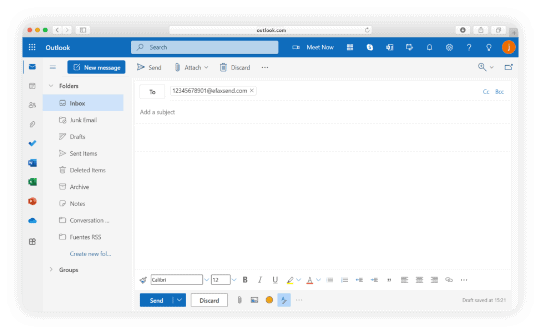
Open your Outlook account and click on “New E-Mail” to create a new message.
3. Enter the recipient’s details
Enter the fax number of your recipient, followed by “@send.efax.com.” For example:
[email protected].
4. Add fax documents as email attachments
Upload a document by clicking the paperclip icon to attach documents. eFax® will automatically convert the document into a fax message.
5. Create a cover page
Type a message into the email body to create the cover page for your fax. Alternatively, choose a cover sheet template that’s available for free on eFax.
6. Send your fax
Click the Send button as you would when emailing to send your fax.
Here’s how to fax from Yahoo email:
Simplify your faxing experience by combining Yahoo Mail with eFax.
1. Create a new email message
Open your Yahoo account and click on the Compose icon to create a new message.
2. Enter the recipient’s details
Type in the recipient’s fax number, followed by “@send.efax.com.” For example: [email protected].
3. Add fax documents as email attachments
Upload a document by clicking the paperclip icon to attach your document.
4. Create a cover page
Type a message into the email body to create the cover page for your fax or use an eFax® cover page template.
5. Send your fax
Click the Send button and receive a confirmation in your email.
You can also receive faxes directly in your email with any of these email solutions.
Now that you know how to send a fax, learn how to receive faxes directly in your email. With these two guides, you’ll be able to fax efficiently and effortlessly, anytime and anywhere.
Why choose eFax for sending and receiving faxes?
eFax has been a leading provider of online faxing, serving 25M+ million users since 1995.
More ways to fax than just email
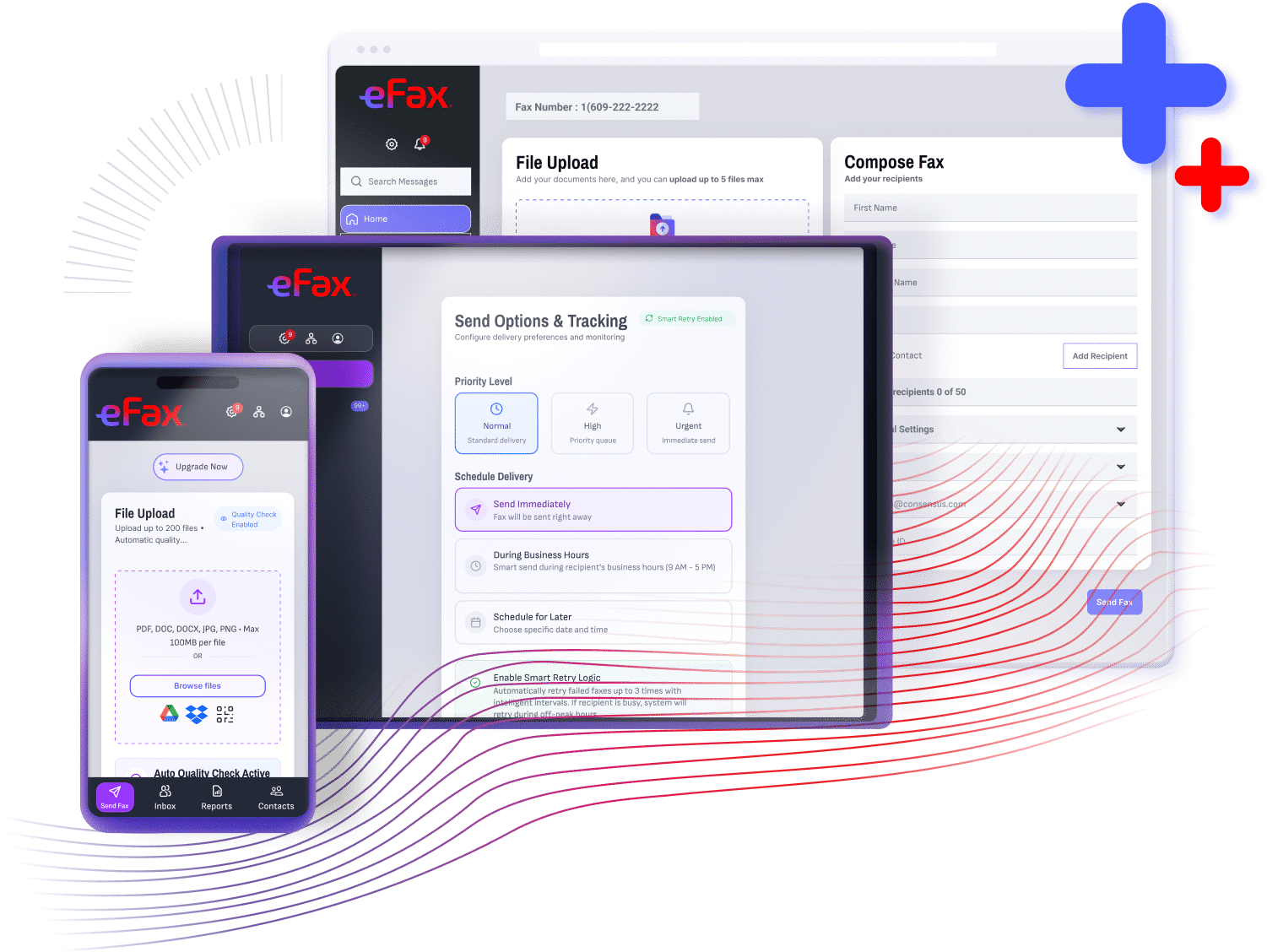
Whether you’re at your desk or on the move, eFax gives you total flexibility:
eFax Web Portal: Manage faxes directly from any browser.
Print-to-Fax: Send documents instantly from your desktop apps.
Mobile App: Fax on the go with our top-rated iOS and Android apps.
Faxing from Your Computer
Looking for a quick and intuitive way to send a fax from your Mac or Windows computer? eFax® is the easiest way to send faxes without a fax machine. You don’t need the extra hardware, busy signals, toner or paper. All you need is an eFax account, which takes less than five minutes to set up.
Discover how to fax from a computer.
Benefits of Faxing by Email with eFax
Sending fax by email with eFax offers multiple benefits that traditional faxing can never replicate:

Stay mobile
The ability to use email to fax means you can do business on the go and handle all your faxing needs. All you need is an eFax account and an internet connection.
Streamline business communications
Faxing from email eliminates many of the hurdles that come with traditional faxing. Paper jams, jammed signals and misplaced fax documents are a thing of the past when you use eFax.
Sign documents electronically
Take advantage of the electronic signature feature to quickly and efficiently sign documents while using email to fax.
Save money
Sending fax through email with eFax means you no longer have to pay for a dedicated phone line, expensive fax machine, office supplies or ongoing maintenance. This can save you or your company a lot of money in a financial year.
Keep it simple
eFax lets you send fax mail without dialing, waiting or paper. Simply log in to your account and attach documents.
Manage documents on the cloud
You can store and manage your faxes using the eFax cloud-based storage system. This means access to sent and received documents anytime, anywhere and on any device.
Other Ways to Fax Without Using a Fax Machine
Easily learn how to send a fax from different platforms using step-by-step guides for each. Whether you’re using popular email clients, cloud services, or communication apps, these resources will help you send faxes with ease.
Send and Receive Faxes in Minutes
Related Resources Around Faxing From Email
FAQs About Sending & Receiving Faxes via Email
Yes. With eFax®, you can attach multiple files to a single email, which are then combined into one fax transmission.
Yes, eFax takes data security seriously. Your faxed documents are encrypted for protection, and eFax follows industry-standard security practices to safeguard your information during transmission and storage.
eFax® offers a 7-day free trial, but there is a cost after the trial period ends. Explore plans and pricing.
No. Online fax services use the internet instead of a traditional phone line, allowing you to send and receive faxes from your computer.