How to Fax From Google Drive and Google Doc?
5 Easy Steps To Send Faxes From Google Drive
It’s easy to send faxes using documents saved in your Google Drive. eFax is compatible with documents such as Word documents, PDFs, image files and Google Docs or Sheets, including those saved on your Google Drive.
1. Sign in to your eFax account
First, sign in to your eFax account. If you don’t have one, create an eFax account.
2. Compose a fax using your eFax online portal
Open your eFax online fax portal and choose “Compose a fax” to start a new fax.
3. Select your Google Drive file
4. Enter recipient details on eFax Print-to-Fax
In eFax Print-to-Fax enter your recipient details and add a cover page.
5. Send your fax and relax!
Does Google Offer Faxing Service?
No, Google doesn’t have its own built-in fax service.
However, you can still send Google files through internet faxing.
With eFax, users can integrate a digital faxing solution into Google Workspace tools like Gmail, Google Drive and Google Docs.
Can You Fax for Free Using Google?
Google doesn’t offer any type of fax solution, but there is no extra fee for sending your Google files as a fax through a third-party digital fax solution. While there are free internet fax services available, many of these are unsecured and unreliable. A dedicated digital fax service like eFax lets you send faxes safely and easily.
How to Fax From Google Drive and Google Docs?
If you Google “Can you fax with Google Drive?” you’ll receive the answer, “No, Google Drive does not support faxing directly.” So, what happens when some of the more than 800 million daily Google Drive users need to know how to Google Fax?
eFax allows you to send information online in just a few minutes securely. Electronic faxing solutions are a quick and simple way to fax from Google—even when you are on the go.
With eFax, you won’t need expensive and bulky equipment to send your Google Workspace documents as a fax.
3 Easy Ways to Fax Google Docs with eFax
No matter where you are or when you need to send a fax, eFax is here to help! We have three methods for faxing your Google Docs or Sheets content quickly and easily using the power of eFax.
We’ve tried to cut out the hassle, so you have a convenient solution for sharing important documents, invoices, receipts, contracts and more. All you need is an eFax account to get started, and that’s one reason so many customers consider eFax the best online fax service.
1. Use eFax Print-to-Fax to Fax a Google Doc
You can use eFax Print-to-Fax to send documents quickly from your Google Account. First, you will need an eFax account. Then, you will need to download our free eFax Print-to-Fax software that enables convenient faxing directly on your desktop.
Once you have eFax Print-to-Fax set up, you can use the “Print to Fax” option to send your document.
How to Print to Fax a Google Doc
- Open your Google document of choice
- Choose “File” menu and click the “Print” option
- Set the eFax Print-to-Fax as your printer
- Click “Okay to Print” with the eFax Print-to-Fax chosen to launch the software
- Fill out the fax form in Print-to-Fax and click “Send” to submit your fax
Just a few quick minutes, and you can send off a digitized fax straight from Google Docs on your desktop! eFax Print-to-Fax makes it easy to continually send faxes from your work computer whenever the need arises.
2. Send a Fax From Google Doc Using Gmail
Email offers a great option if you need to send a one-time fax from a computer or device you don’t typically fax from. Rather than take the time to download our desktop or mobile app, you can send your Google Doc directly through your email as a fax. If you have an eFax account, you can fax your Google documents on any computer or device where you can access Gmail.
How to Send a Fax Through Gmail
- Open a new email message in your Gmail account
- Enter the recipient’s fax number followed by @send.efax.com (for example: 12223334444@send.efax.com)
- Attach up to 10 files using the Google Drive icon
- Any text you want on a cover page can be added to the body of the email
- Click “Send” to complete your Google Docs fax
Yes, it really is that easy to send your Google files as a fax using your email account.
3. Fax Your Google Doc by Mobile App
Our mobile app makes it easy to send your fax from anywhere at any time. For an on-the-go faxing solution, simply download our free fax mobile app to use with your eFax account.
Our app makes it easy to send files from your mobile device storage or straight from the cloud. You can even take a picture of a printed document for your fax.
How to Send a Google Docs Fax from Your Phone
- Open your eFax app and log into your eFax account
- Hit “Compose Fax” in the menu
- Enter the recipient’s fax number or select the receiver from your contact list on the send form
- You will have the option to include a cover page if desired
- Add your Google file attachment to the fax from your Google Drive
- Hit send once you’ve added all your attachments
eFax mobile makes sure your document is delivered quickly and accurately.
6 Benefits of Using eFax for Faxing From Google
There are many reasons our clients love eFax. Here are some of the top benefits of using eFax to fax from Google Drive.
1. Easy-to-Use Interface to Streamline Your Fax Process
One of the most significant benefits of eFax is that it won’t lock you into a box by requiring a physical fax machine. We have created our platform to be as intuitive and user-friendly as possible to save you even more time and hassle. You can fax anywhere, anytime with eFax.
2. Environmentally-Friendly Document Creation, Editing and Sharing Tool
One of the reasons many businesses like Google Docs and the Google Workspace is because it doesn’t require you to manage your own servers and it’s easy to share documents. eFax, considered one of the best online fax services, makes sending faxes just as easy. You don’t need a fax machine, paper or ink to send your documents quickly and securely.
3. Quick Set-Up and Grows with Your Business
With eFax, we keep things simple and cost-effective. It doesn’t matter if you are a small startup looking for the best free online fax service or an enterprise company, we have an eFax plan that’s right for you, including a free fax trial period.
We offer options that support the number of faxes, locations and employee accounts you need today and let you scale as you grow. Our interface is perfect for teams who already know how to use Google Docs. There’s a minimal learning curve, so you won’t experience long ramp-up times and can maximize efficiency quickly.
4. Electronic Fax offers a Reliable Way to Send Important Files
With a traditional fax machine, you won’t receive faxes unless your machine is turned on. That’s true whether you purposely shut your machine down when your business is closed or if an unexpected power outage occurs. As a result, you can miss essential incoming communications—and that could lead to missed opportunities.
You can eliminate that problem with an electronic faxing solution like eFax. Even when the internet connection is lost or the network is down, your electronic faxes can keep coming through. With every fax, you get a confirmation email to show a receipt of delivery—so you’ll know precisely when each fax arrived.
5. Electronic Faxes Are Cost-Effective and Don’t Require Special Equipment
You don’t need to purchase a fax machine, ink, toner or any special equipment to send, receive, edit and store faxes. eFax eliminated the need for bulky and pricy fax equipment that traditionally takes up space in your office or home. You can use our platform to send electronic faxes, enjoying the benefits without the additional expenses.
6. eFax Improves the Efficiency and Productivity of Your Team
New tech makes it easier than ever for your team to send digitalized documents in just minutes to anyone with a fax account. Using eFax, you can set your electronic signature, choose a local phone number, sign up for free online storage and more!
Streamline Faxing from Google Drive with eFax Print-to-Fax
eFax is the trusted online faxing solution for nearly half of Fortune 500 companies. Seamlessly integrate your Google Workspace into your faxing workflows to completely remove your dependence on physical faxing machines. No more misplaced faxes or data leaks with eFax’s encrypted faxes sent directly to your inbox.
Protect Your Faxes With Enhanced Security
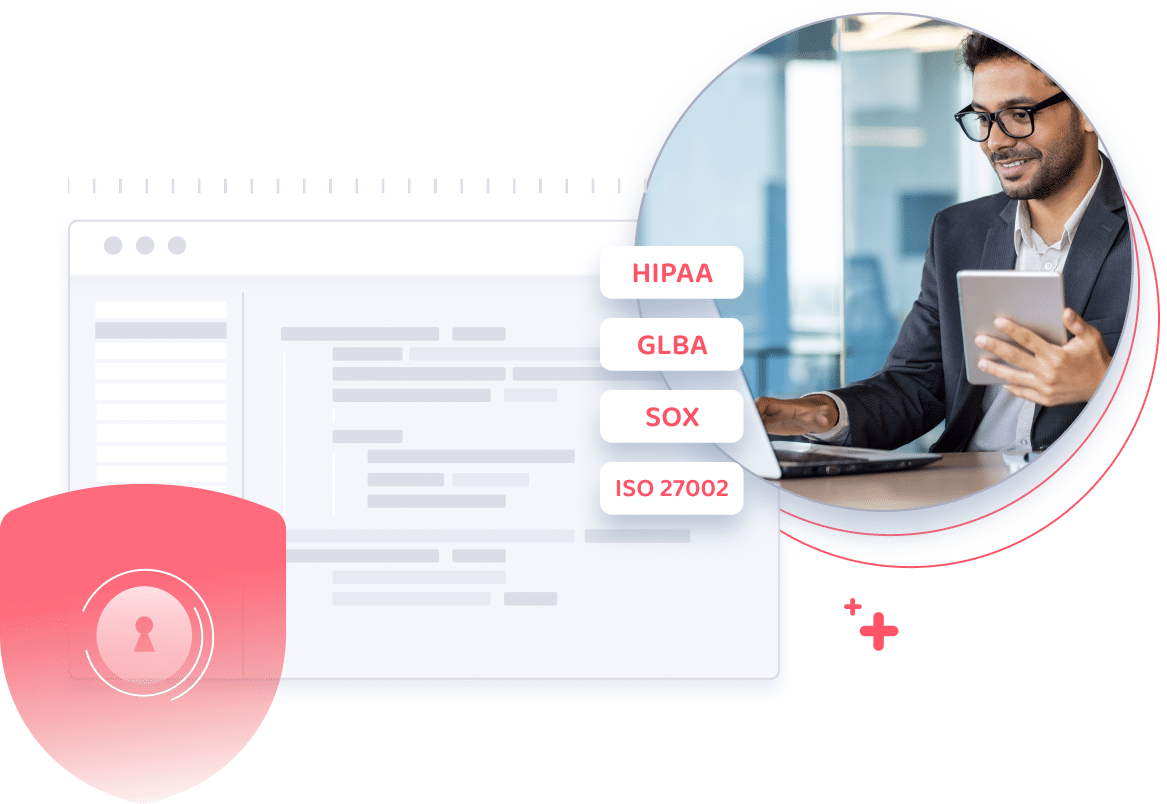
eFax cloud faxing uses SSL and 256-bit AES & TLS encryption to protect your sensitive online faxes during transit and storage. Our applications comply with strict HIPAA, GLBA, SOX and ISO 27002 security standards.
Reduce Overhead And Maintenance Costs
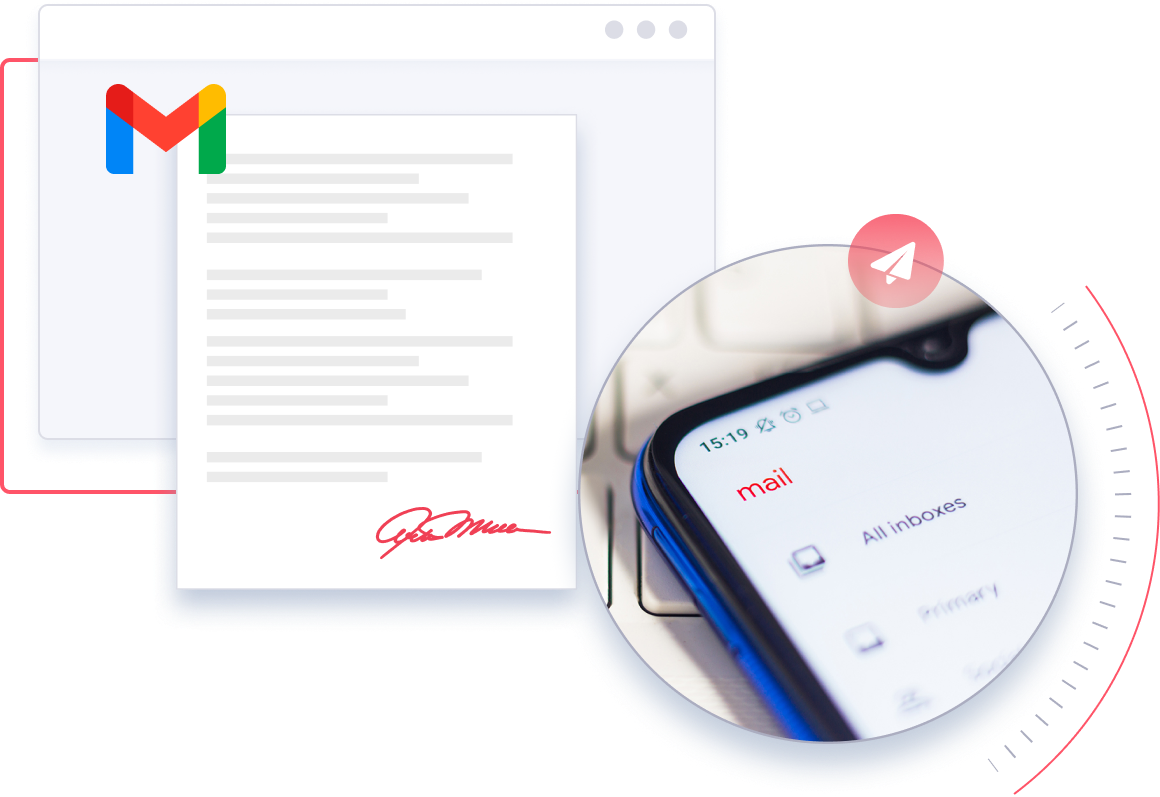
Physical fax machines add to the overhead costs of your business. You need to account for expenses like a fixed phone line, paper, ink and toner. With online faxing, you receive your faxes directly in your Gmail inbox, removing your dependence on physical machines and automatically cutting down on overhead and maintenance costs.
A Whole Lot More Than Just Online Faxing With eFax Print-to-Fax
The eFax Print-to-Fax desktop application is more than just a great tool to efficiently and reliably send faxes.

Online File Sharing
Integrate with popular cloud storage services like Dropbox, iCloud and Google Drive for easy file sharing.
Mobile Apps
Send and receive faxes on the go using the eFax Mobile App.
Enhanced security
Ensure only authorized personnel view faxes by transmitting SSL-encrypted faxes directly to their inbox.
Local Toll-Free Fax Numbers
Establish a local presence for your business using local, toll-free fax numbers with any area code.
Learn How to Send Faxes Seamlessly Across Multiple Platforms
Easily learn how to send a fax from different platforms using step-by-step guides for each. Whether you’re using popular email clients, cloud services, or communication apps, these resources will help you send faxes with ease.

“eFax® is one of the most feature rich and well-known online fax services on the market and includes features like mobile apps, e-signature capabilities, …compliance and unlimited fax storage…”
See More eFax Reviews
“Sending fax over internet to a local or toll free number is extremely easy using its simple interface integrated with your email account. Enhanced features like digital signature and integration with mobile apps are like icing on the cake.”
See More eFax Reviews
“What I like about eFax® is that it includes a share extension, so I can fax from almost all iOS apps that support sharing. This makes it easy to fax a document from almost all of my apps.”
See More eFax ReviewsSend and Receive Faxes in Minutes
A World Leading Online Fax Service
eFax Messenger streamlines your faxing processes by seamlessly integrating into your existing business workflows. With eFax’s reliable and user-friendly platform, faxing becomes paperless, efficient and convenient. Experience the future of faxing with eFax’s leading online faxing solution and exceptional customer service.
Related FAQs Around Faxing From Google
Yes, you can send your Google doc as a fax using eFax Messenger.
First, download the eFax mobile app or Print-to-Fax, and log into your account. Next, go to your file on Google Drive and select the ‘Print’ option. Select ‘eFax Print to Fax’ from the listed printers, enter your recipient details and hit send.
Google doesn’t offer a built-in fax service. To send or receive free faxes, users need to rely on a third-party online fax provider that integrates with Google’s tools.
eFax offers a free trial for 7 days to test it out. After that, you need a subscription to continue using eFax.
While what’s the best is subjective, millions of customers trust eFax, including many of the world’s largest companies, to send and receive faxes securely.