How to Fax from iPhone or iPad?
Android user? Here is a step-by-step guide for how to fax from an Android phone or tablet.
How to Send a Fax From iPhone in 5 Simple Steps?
1. Get the App
Download the eFax App from the iOS App Store
Download
2. Attach Documents
Add any documents you want to share to the fax. You can upload them directly from your iPhone or by taking a picture of the document.
You can add up to 20 documents 100MB total per fax.
3. Select a Recipient
If you have a contact list, select the recipient to send a fax message. If you don’t have a contact list, enter their fax number.
4. Create a Cover Page
Draft your fax message.
5. Send Your Fax
Press the ‘Submit’ button to send your fax.

3 Alternative Ways to Send a Fax from Your iPhone
There are three other ways to send a fax from your iPhone:
- Scan to fax
- Email to fax
- iPhone Notes app
Here’s how to fax from iPhone using these techniques:
How to Send a Fax Using a Scanner
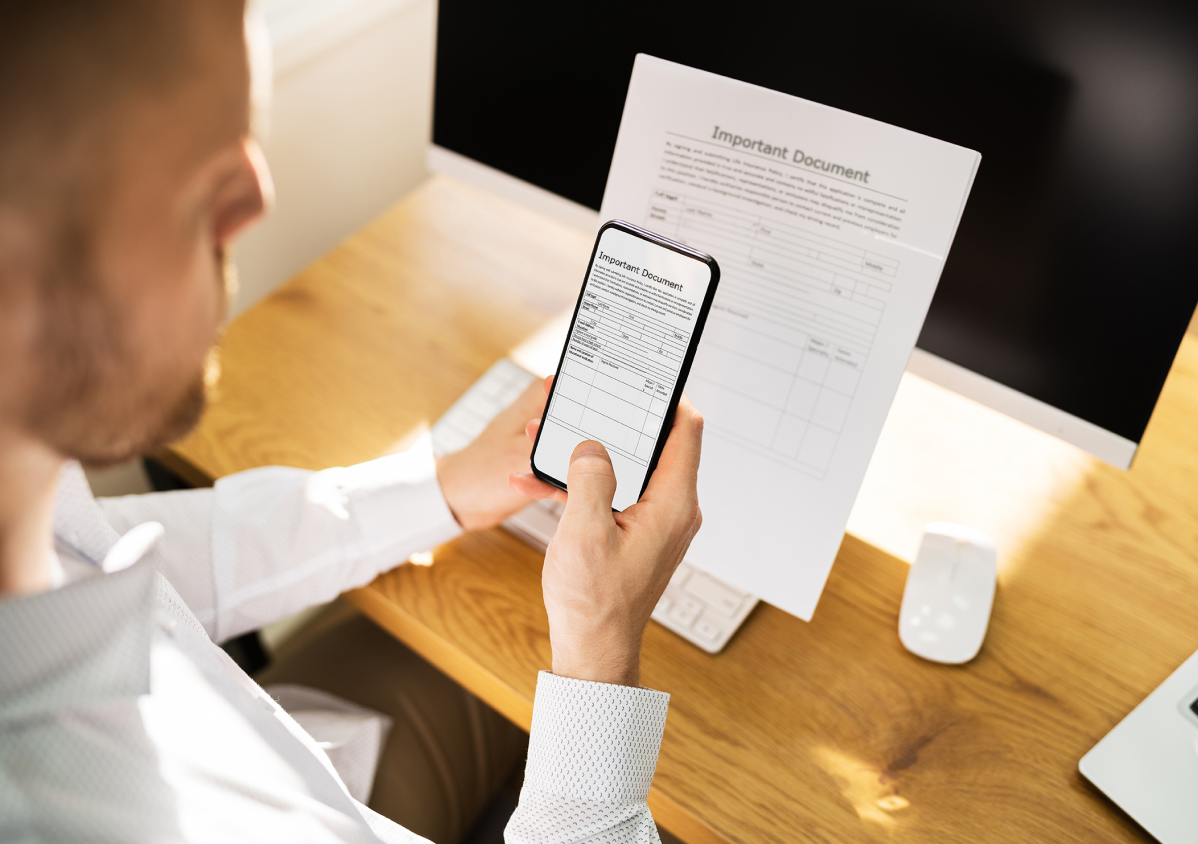
With scan-to-fax solutions, iPhone users can use their phone’s camera to capture a document, which is then converted into a faxable format such as JPEG or PDF. Once scanned, the document can be sent instantly using eFax, making it a simple and paperless way to fax from iPhone.
Whether you’re working from home or the office, learning how to fax from an iPhone using this method is convenient and secure allowing iPhone users to fax easily without the need for traditional fax machines or faxing hardware.
.
How to Send a Fax Using Email
You can email to fax via the eFax online fax solution. Simply:
- Using the email connected to your account, compose a new email
- Put the recipients’ fax number in the to field in this format [FaxNumber]@send.efax.com
- Attach the documents you want to send
- Send your email, and it will be sent as a fax through the eFax online fax system
Knowing how to fax from an iPhone through email is a time-saver if you’re on the go, enabling you to send faxes anytime from anywhere.
How to Fax Using the iPhone Notes App
While the iPhone Notes app doesn’t have fax capabilities, you can send faxes from your iPhone using documents you create in Notes:
- Within Notes, press and hold the screen, then select “Scan Document” to start the process.
- Save your document in the photo gallery.
- Open the eFax® app and select “Compose a Fax.”
- Write your fax and attach your saved Notes document.
- Enter the recipient’s fax number within the eFax® app and press Send.
To make faxing from Notes easier, make sure to label your saved documents so you can track them later. You can also include a cover sheet that clearly identifies your intended recipient and the number of pages you’re sending so that the person who gets your fax knows they have it all. You should also only send faxes to trusted numbers, and make sure any sensitive or private data is secured.
Why is Faxing from an iPhone Convenient?
Faxing directly from your iPhone gives you the freedom to:
-
Send documents from anywhere, any time.
-
No hardware or dedicated phone lines.
-
Create and send secure, paperless faxes on the go.
-
Easily scan and upload documents using your iPhone camera.
-
Connect seamlessly with your preferred cloud storage service.
-
Edit, customize, and sign a document using your iPhone.
-
No more lost or misplaced faxes.
The free eFax app makes your iOS device a powerful faxing tool that fits in your pocket, so you stay productive whether you’re in a meeting, traveling, or working remotely.
3 Powerful Features of eFax Mobile App for iOS
eFax’s app development team works extremely hard to ensure your move to virtual faxing is as easy and fluid as possible. The eFax iOS app includes necessary online faxing features, such as:
-

AirPrint for printing faxes—meaning you don’t have to install additional drivers to print
-
Secure third-party apps for sharing files
-
Access to the phone’s contact database


Fax from Different Devices
Sending a fax from different devices has never been easier. Whether you’re using a smartphone, tablet, or computer, each method is straightforward with the right tools. Below are guides that will help you fax efficiently from various devices.
Start Building with the eFax® Platform
Related Resources
FAQs about Sending & Receiving Faxes from iPhone
Yes, you can send free faxes from your iPhone with the free eFax® iOS app and a free faxing trial . This includes up to 200 pages for free for seven days. You can upgrade your service if you need to send more faxes.
With the eFax iOS app, you can add your signature directly from your iPhone or iPad before sending a fax. Simply upload your document, select the signing option, and place your saved signature where needed. This allows you to sign contracts, forms, and approvals quickly without printing or scanning.
Yes. With eFax, you can prepare your fax on your iPhone and choose to send it at a later time through your online account.
Absolutely. Get the eFax mobile app on your iPhone to send faxes on the go. Simply download the app, log in to your eFax account and follow the intuitive steps to send faxes from your iPhone. Alternatively, you can use eFax to receive faxes via email and access your email inbox from your phone.
To send a fax directly from your iPhone without relying on an application, you can leverage a web browser in conjunction with your eFax account. By accessing your eFax account via the web interface, you can effortlessly include recipients, attach documents, and seamlessly send your fax, all without the need for an additional application.
Faxing documents from your iPhone is effortless with eFax. Simply sign up for an eFax account and download the eFax iOS app. Once logged in, create a cover page, enter the recipient’s fax number, upload your document, and eFax will send the document a fax to its destination.
No, there’s no limit. You can send as many faxes with eFax as you need.
However, depending on your free fax app for iPhone and chosen plan, you only get a limited number of sends and receives every month. Once those are exceeded, each send and receive will be charged. For the Personal plan, the overage rate is 10 cents per page for North America, while for the Business plan, it is reduced to 7 cents per page.
With eFax Personal, you can send and receive up to 200 pages per month. With eFax Business, the monthly page limit is increased to 500 pages and includes Tier 1 International sending.
We also offer the eFax Corporate plan, which allows you to set flexible send/receive limits on your faxing app. This is ideal if your business requires a fax service involving dozens of users. To find the best plan for your needs, get started with a free trial account and go from there.
As one of the best free fax apps for iPhone users, eFax ensures secure online faxing by encrypting documents for privacy during transmission and implementing access controls like two-factor authentication to prevent unauthorized use or breaches.
eFax supports a wide variety of file formats that most people and businesses commonly use, including PDF, Word documents, TIFF, JPG, and PNG.
You can’t send faxes directly from the Notes app as it doesn’t allow faxing. However, Notes is a great way to write a fax using your Apple iPhone. Users can quickly and easily save these Notes to PDF or image files and attach those images as a fax using the eFax digital faxing app.